Family Tree Maker says your file is damaged or corrupted
Most corrupted Family Tree Maker files are repairable with a tool already on your computer. Close the tree, run with extended analysis turned on, and repeat it until the reported reduction stops falling. That one detail, repeating it, is what most people miss.
- Applies to
- FTM 2024 · 2019 · 2017 · 2014
- Platform
- Windows & Mac
- Time
- ~45 min
- Updated
Your research is almost certainly still there. "Corrupted" sounds like the records have been destroyed. In practice, what usually breaks is the index: the internal table telling the software where each person sits inside the file. The names, dates, sources and notes are still written on the disk. Rebuilding the index is exactly what the first fix below does.
Signs a Family Tree Maker file is damaged
Damage announces itself in several different ways, and they all lead here:
- A message that the file is damaged, or that Family Tree Maker can't open it.
- The tree opens, but people, facts or media that were definitely there have vanished.
- The program closes by itself whenever you open one particular person or view.
- A warning that the program was closed improperly the last time it ran.
- Sync fails repeatedly, even though your connection and Ancestry account are fine.
- The file size has changed dramatically, ballooning or collapsing to a few kilobytes.
What damages a tree file
A Family Tree Maker tree is a database, and databases are vulnerable at exactly one moment: while they're being written to. Anything that interrupts a write leaves the index describing a state the file is no longer in. These are the causes we encounter, roughly in order of how often they turn out to be the real culprit:
| Cause | What it looks like | Usual outcome |
|---|---|---|
| File kept in a cloud-sync folder (Dropbox, OneDrive, iCloud, Google Drive) |
Intermittent damage that keeps coming back after each repair | Recoverable, but it recurs until you move the file out |
| Improper shutdown power loss, forced quit, crash while the tree was open |
"Closed improperly" warning, or an index that no longer matches | Recoverable by compacting in most cases |
| Interrupted sync connection dropped partway through |
Sync fails on every retry; the tree looks fine otherwise | Usually recoverable; see the sync guide first |
| Failing drive sectors | Other files on the same drive also misbehave | Recover to a different drive urgently. Repair the tree second |
| Antivirus interference scanner locking the file mid-write |
"In use by another program" when nothing else is open | Recoverable; add an exclusion to prevent recurrence |
| Very large media library years of high-resolution scans |
Slow decay, then instability rather than a hard failure | Recoverable; compacting alone often resolves it |
If your tree file lives in Dropbox, OneDrive, iCloud Drive or Google Drive, move it out today. Cloud clients write to files in the background while Family Tree Maker also has them open. That is a direct route to repeated corruption, and it is the single most common cause we see. Keep the working file on your local drive and let the cloud folder hold your backups instead.
Do this first Copy the damaged file before you touch it
Every repair below writes to the file. If a repair goes badly, there is no undo. A plain copy costs you two minutes and is the difference between one problem and a permanent one.
-
Close Family Tree Maker completely.
-
In Windows Explorer or the Mac Finder, find your tree file. It ends in
.ftmand normally sits in . -
Copy it to a different drive. A USB stick is ideal. Not another folder on the same disk, in case the disk itself is the problem.
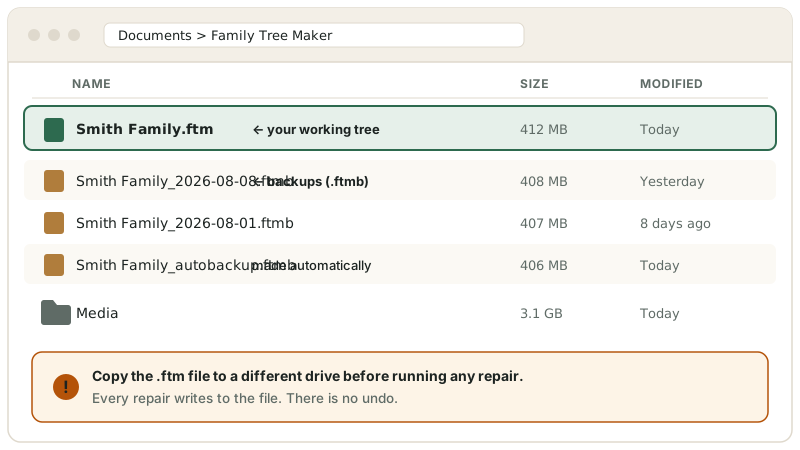
Your working file and your backups. Copy the .ftmto a separate drive before running any repair. Schematic. It shows where to look, not a picture of your screen. Layout varies by version. -
Rename the copy with today's date, so you know which is which in an hour's time.
Fix 1 — Compact the file, repeatedly
Fixes most cases Rebuild the index with extended analysis
Compacting rebuilds the database indexes and reclaims wasted space. Run properly it repairs the majority of damaged trees. Two details decide whether it works, and nearly every guide online omits at least one of them: the tree must be closed, and the routine must be repeated.
-
With Family Tree Maker running but your tree closed, choose if it's still open. Compact File cannot work on a tree that is currently loaded. That is why so many people report the option "does nothing".
-
Open .
-
In the dialog, navigate to your tree file, select it, and click Open.
-
Tick Perform extended analysis, then click Compact. Extended analysis inspects the internal record structure rather than simply reclaiming free space — for a damaged file it's the part that matters, and it's off by default.
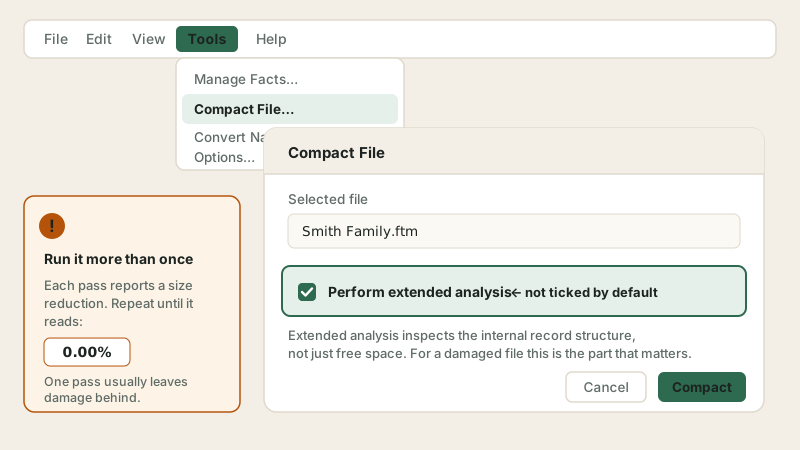
Extended analysis is not selected for you. Tick it every time — and run the routine again until the reduction stops falling. Schematic. It shows where to look, not a picture of your screen. Layout varies by version. -
Let it finish without interrupting. On a tree of tens of thousands of people this can take half an hour.
-
Read the confirmation window. It reports a file size reduction percentage. Write it down.
-
Run the whole routine again. And again. Keep going until the reported reduction stops falling: 0.00% or a small figure just above it on FTM 2019 and earlier. FTM 2024 users report 0% on every pass, so on that version judge by whether the tree opens cleanly and feels quicker. Each pass can only rebuild so much; a badly damaged file commonly needs three or four passes before it settles. Stopping after one pass is the single most common reason people conclude that compacting "didn't work".
-
Reopen the tree and check the areas that were misbehaving.
Compacting is also worth running twice a year on a healthy tree as routine maintenance. We've written that up separately in how and when to compact your tree file.
Fix 2 — Restore the last clean backup
Most reliable Go back to a copy made before the damage
If compacting doesn't clear it, a backup is the cleanest route. It's also the honest answer to why backups matter: a restore turns a catastrophe into an inconvenience. You often have more backups than you think, because Family Tree Maker makes some on its own.
-
Look in for files ending in
.ftmb. These are backups. -
Check for automatic backups as well as ones you made deliberately. Family Tree Maker creates these on a schedule, and most users have no idea they exist.
-
Sort by date and pick the newest one from before the trouble started. Restoring the most recent backup of all is a common mistake — a backup taken after the damage contains the damage.
-
Restore it to a new file name rather than over the top of your damaged file. Keep both until you're satisfied.
-
Open the restored tree and spot-check the people and media you were most recently working on.
Step by step in restoring a Family Tree Maker backup. If you're reading this and your file is fine, go and set up a backup routine that actually works now.
Fix 3 — Download a clean copy from Ancestry
If you sync Rebuild the file from your online tree
If you linked your tree to Ancestry and synced it successfully at some point, there's a second copy of your research sitting on their servers. Downloading it produces a structurally fresh file with none of the local damage.
-
Sign in to Ancestry in a web browser and confirm the online tree looks correct and complete.
-
Check the date of your last successful sync. Anything you did locally after that date is not in the online copy and will need re-entering.
-
In Family Tree Maker, download the online tree as a new tree file. Do not overwrite the damaged one.
-
Compare the two. Media is the thing to check hardest — items attached locally but never synced won't be in the downloaded copy.
An Ancestry tree is not a backup. It holds people, facts and sources, but not your publications, task lists or chart layouts — and only up to your last sync. Useful as a rescue route, not a substitute for real backups.
Fix 4 — Reconstructing the file through GEDCOM
Last resort Extract the research into a brand-new file
If the file still opens well enough to export, GEDCOM gives you a way out. This is file reconstruction: you are extracting the genealogy into a plain-text standard and rebuilding the database around it, which leaves the damage behind. It costs you some of the things GEDCOM was never designed to carry.
-
Open the damaged tree and export the entire file as a GEDCOM, including media links.
-
Create a new, empty tree and import the GEDCOM into it.
-
Expect to lose publications, task lists and some chart formatting, and to find some source citations flattened. People, relationships, facts, notes and sources come across.
-
Re-link your media folder, then run once on the new tree to leave it in good shape.
If you pay for the cloud service, there is one more route
Two things are worth knowing before you spend an evening on repair. If a cloud upload is what surfaced the problem, the alert itself offers a Compact and Try Again button, and clicking it fixes a good share of these outright. And if the local file is beyond saving, the emergency restore service pulls your tree back down from the cloud copy: install FTM 2019 or 2024, sign in, open the Plan workspace, and choose Emergency Tree Restore from TreeVault on the New Tree tab.
Check which subscription tier you hold before you count on that, though. The entry-level plan stores your tree data and none of your media, so a restore from it returns every person, fact and source with all the photographs missing. Higher tiers carry media too. The images are the part nobody can research again, so knowing which tier you are on is worth five minutes of your time today rather than on the day you need it.
If none of these worked
A file that resists all four routes is usually one of two things: damage severe enough that the program can't read the header at all, or a failing disk that will keep re-damaging whatever you put on it. Both are past the point of self-service, and both have honest options:
- Go to the publisher. The publisher of Family Tree Maker runs a free support centre with version-specific repair articles, a support request form and free live chat around the clock. For anything touching your licence, your purchase, or a suspected bug in a specific build, they're the right destination.
- Stop writing to the drive. If other files on the same disk are also playing up, every further write reduces what can be recovered. Power the machine down and have someone image the drive before anything else.
- Or have someone look at it with you. Reading the file header to work out what is actually damaged isn't something we can usefully talk you through in writing.
File still won't open?
Send us a copy and we'll tell you honestly what's recoverable before you pay anything. Most damaged trees come back intact. If yours can't be saved, you don't pay.
Stopping it happening again
- Never keep the working file in a cloud-sync folder. Local drive for the tree, cloud folder for the backups. This one change prevents most repeat corruption.
- Close the tree properly before shutting down, and don't force-quit with the file open.
- Compact twice a year whether or not anything is wrong. It takes minutes.
- Keep backups in more than one place, and check occasionally that they're a sensible size. An 8 KB backup is not a backup.
- Add an antivirus exclusion for your Family Tree Maker folder if your scanner is aggressive.
- Watch the drive. Odd noises, slow saves, or other files misbehaving are a warning worth acting on before it costs you the tree.
Frequently asked questions
Is my family tree data lost if the file is corrupted?
Almost never. Corruption in Family Tree Maker usually damages the index rather than the records, which is why rebuilding the index with Compact File recovers the tree intact in most cases. Even when the file won't open at all, the underlying records normally remain readable.
How many times should I run Compact File?
Until the reported reduction stops falling. On FTM 2019 and earlier that means 0.00% or just above. FTM 2024 users report the figure reading 0% on every pass, so there judge by how the tree behaves. Each pass rebuilds only so much, so a damaged file often needs three or four passes before it settles.
What causes a Family Tree Maker file to become corrupted?
Improper shutdowns, power loss with the file open, failing drive sectors, interrupted syncs — and, most often in our experience, keeping the working file inside a cloud-sync folder like Dropbox or OneDrive. See the causes table above for what each one looks like.
Can I repair a Family Tree Maker file on a Mac the same way?
The Compact File routine exists on both platforms and works the same way, though the Mac edition stores files differently and the publisher publishes a separate Mac repair article. The backup, Ancestry and GEDCOM fallbacks are identical on both.
Will exporting to GEDCOM lose any of my research?
It carries people, relationships, facts, notes and sources, but not saved publications, task lists or chart formatting, and some citation detail gets flattened. Treat it as a rescue route, not a routine backup.
Should I use a third-party file repair tool?
Be careful. Generic database repair utilities advertised for FTM files rarely understand the schema, and can write changes that turn a recoverable file into an unrecoverable one. Exhaust the built-in routine, your backups and your Ancestry copy first — and always work on a copy.
My file is only a few kilobytes now. Is it gone?
Not necessarily, but stop using that drive immediately. A file that has collapsed in size usually means the write that was in progress never completed, or the drive is failing. Recover from a backup or your Ancestry copy rather than trying to repair it in place, and see tree file missing or lost.